How to Create a Store Locator PageThat Google, ChatGPT, and Your Customers Can All Read
10 tips for building a store locator that Google, ChatGPT, and your customers can all read, starting with the test that shows what AI crawlers see.

Key takeaways
- View your locator’s page source and check that store names, addresses, and hours appear in it
- Give every location its own crawlable URL without a #! in it
- Feed your store locator and your business listings from the same location record
The first time customers view their locator’s page source, most are surprised to find no stores in it at all. Server rendering fixes that, but it’s a shared job: We render the pages, and their web team spends 15 min to an hour configuring their server to pull them in. WordPress sites can do this from settings; Apache, Nginx, or LiteSpeed setups need a developer for about 30 minutes. After that, every location is in the HTML on day one.

A lot of store locators, including the original embedded version of our own, assemble a list of their stores in browsers with JavaScript. The problem with that is some search engine crawlers, along with the bots behind four of the six major AI crawlers — GPTBot, ClaudeBot, PerplexityBot, and CCBot — don’t execute JavaScript at all. Cloudflare’s Q1 2026 data puts bot traffic at almost a third of all web requests, and AI crawlers are a growing share of that. Let’s guess what that number will look like in Q1 2027 …
So when these crawlers (or bots) visit those store locators, that store list doesn’t load, and there’s nothing for them to include in their AI search response.
In these instances, those store locators work for customers who already know a brand and go to their site. But for customers asking ChatGPT or Perplexity where to find what that brand sells nearby, those stores don’t exist.
We wanted to know whether AI tools warn brands about this, so we pulled 100 answers from our own AI search tracking to questions like “how to appear in AI search as a local business.” About a third of responses told brands to build a dedicated page for every location, and only two mentioned JavaScript at all.
A store locator page that converts still needs the basics: intuitive search bar, useful filters, and a call or booking button on every store. But a “Book an Appointment” button only helps if someone finds the page it’s on, and these days that page needs to be readable by the AI tools your customers are asking.
So how do you create a store locator that turns a search into a store visit — whether that search happens on your site, on Google, or in ChatGPT?
Make Sure Google and AI Crawlers Can Read Every Location on Your Store Locator
This is the visibility side of Location Performance Optimization (LPO). Before you can improve clicks, calls, or direction requests per store, the store locator page has to be findable.
This is how you check your locator’s visibility for customers and search systems.
1. Look at Your Locator the Way a Crawler Does
Open your locator page in a browser, right-click, and choose “View Page Source.” “Inspect” won’t work for this, because it shows the page after JavaScript has run. Then search the source for the street name of one of your stores.
If the street name isn’t there, an AI crawler that skips JavaScript can’t find that store. Google can still index it, but only once it gets around to rendering the page, which it does in a separate step after the first crawl.
If you’re an Uberall customer, search the page source for __ubSfSsr. If it’s there, server-side rendering is already active.
2. Send Finished Pages From the Server
The fix is server-side rendering: The server sends each locator page with the stores already on it, including names, addresses, opening hours, page titles, descriptions, and structured data.
Who takes care of that depends on where your locator is hosted. If it runs on your own servers, server-side rendering is your web team’s job, so ask them whether it’s set up before you assume crawlers can read your stores. If a provider like Uberall hosts the locator for you, they handle the rendering, and you can ask them to show you these following things on one of your stores:
{{quote}}
The current client-side version keeps running alongside the server-rendered one, so nothing breaks for your customers while you make the switch.
3. Give Every Store Its Own Clean URL
Every store needs its own URL that a server can actually resolve. If your locator URLs look like yourbrand.com/stores/#!/l/seattle/pine-street-1, your server never receives anything after the #! — that fragment stays in the browser and is never included in the request. So when a crawler or a server tries to load that URL, it has no way of knowing which store page to return.
Most brands already have locator and local page URLs in place when they start working with a provider like Uberall. If yours use clean paths — yourbrand.com/stores/l/seattle/pine-street-1 — you’re correctly set up. If yours still uses hashbangs, talk to your locator provider about migrating them. If you’re working with us, we have a step-by-step guide for removing hashbangs that covers the process.
Setup varies too — some brands host the locator on their main domain, some on a subdomain, and some use a reverse proxy. Your provider should advise on the right domain and URL structure based on SEO best practice during setup. And name the page something people actually search for, like “Store Finder” or “Find an Eyewear Store,” rather than a clever ambiguous label like “Find Your Frames.”
This is worth sorting out even if you’re not ready for the full server-rendering upgrade — hashbang URLs have been an SEO problem since before AI crawlers existed, and removing them gives each location a crawlable, indexable URL right away.
4. Put Schema Markup and a Store Directory in the HTML
The correct schema markup labels each fact on the page for Google and AI tools. Without it, a crawler sees a string of text and has to guess whether the numbers it’s reading are Saturday’s opening hours, pricing, a phone number, or a ZIP code.
With schema, each number is tagged for what it is. It only counts if it’s in the HTML they read, so run the same “View Page Source” check for it. You can also validate your markup with Google’s Rich Results Test or a browser extension like Schema Validator to make sure every label is correct and nothing is missing.
Then add a directory that links from your broadest level down to each store — country → state → city → store — so a crawler that lands on one page can follow links to every other location.
Without it, your other 299 stores are orphaned pages with no path to them. The server-rendered version of our Locator & Local Pages generates these directory pages automatically.
Make Your Store Locator Easy to Find, Search, and Act On
You’ve covered visibility once crawlers can read your pages. Your next job is turning that visibility into foot traffic — making it easy for someone who lands on a store page to find what they need, pick a location, and book a visit, call, or walk in.
5. Link to the Locator From Your Header and Footer
Put a plain “Find a Store” link in your top navigation and your footer, where customers will look for it.
6. Add Filters for the Services People Ask About
The best store locator design starts with what your customers search for.
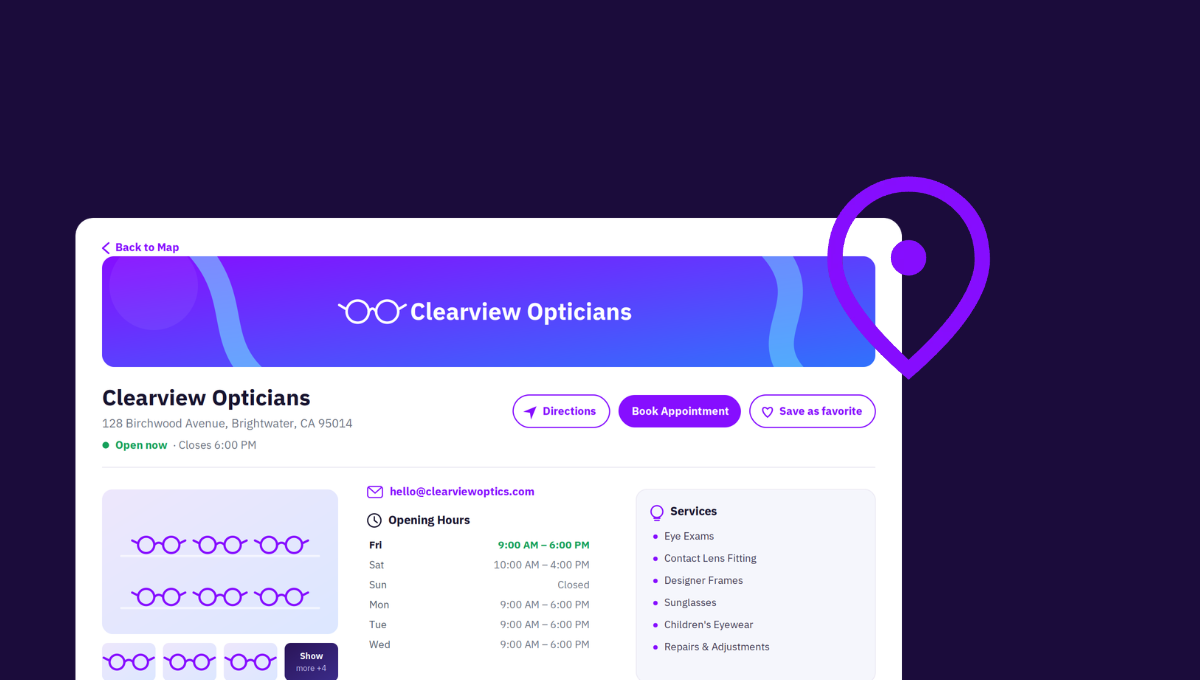
For an eyewear chain — for example — that’s eye exams, contact lens fittings, and Saturday hours.
Uberall’s Store Locator includes filters, so the job on your side is making sure the right data is behind them — each service should appear in the store page’s copy, too, not just as a filter label.
And check that every pin sits on the right location, because a pin on the wrong side of a mall sends customers to the wrong entrance.
7. Design for Mobile First
Test your locator on a phone, over a mobile connection, before you test it anywhere else. Can someone find a store, see whether it’s open, and tap for directions with one thumb?
Our locator is built to be responsive, but server-rendered pages are important, too — store details load with the page rather than after certain elements of the page have loaded. That also shows up in your Core Web Vitals: The largest contentful paint (LCP) happens on the first server response instead of waiting for JavaScript to build the page, which is a metric your SEO team is already tracking.
8. Put a Call, Directions, or Booking Button on Every Store
Give every local store page the action (you and) your customer wants next, whether that’s a click to call, a route in their maps app, or a booking link for an appointment. In Uberall’s platform, you can configure these CTAs per location and adjust the design with CSS.
The platform also tracks how these buttons perform — traffic sources (organic, referral, paid), UTM tracking, and event tracking on each CTA click, with date ranges and filtering so you can compare locations. That means you can see which stores are actually turning page visits into calls, direction requests, and bookings.
Keep Your Store Locator and Your Listings in Sync
OK, but what happens when one of your stores changes its Saturday hours. Who updates the website, and how long does it take before the locator, the Google Business Profile listing, the Bing listing — and all the other listings — and the ChatGPT response all reflect that change?
And who updates that across all relevant pages and profiles if you’re a store with 350+ locations?
9. Give Every Store a Local Page With the Details That Set It Apart
The 100 AI-generated answers we looked at kept telling brands to build a dedicated page for every location. The local pages that do the most work include details and attributes specific to that store, such as:
Those are the facts an AI tool can quote when a customer asks a specific question, like “Where can I go for a walk-in eye test in Austin?”
10. Update Business Details Once and Push That Everywhere
If your location data isn’t consistent, AI models are less likely to cite that location in their responses.
With Uberall’s Locator & Local Pages, your store pages pull from the same location data as your business listings, so one change to your hours, attributes — whatever it may be — updates both simultaneously.
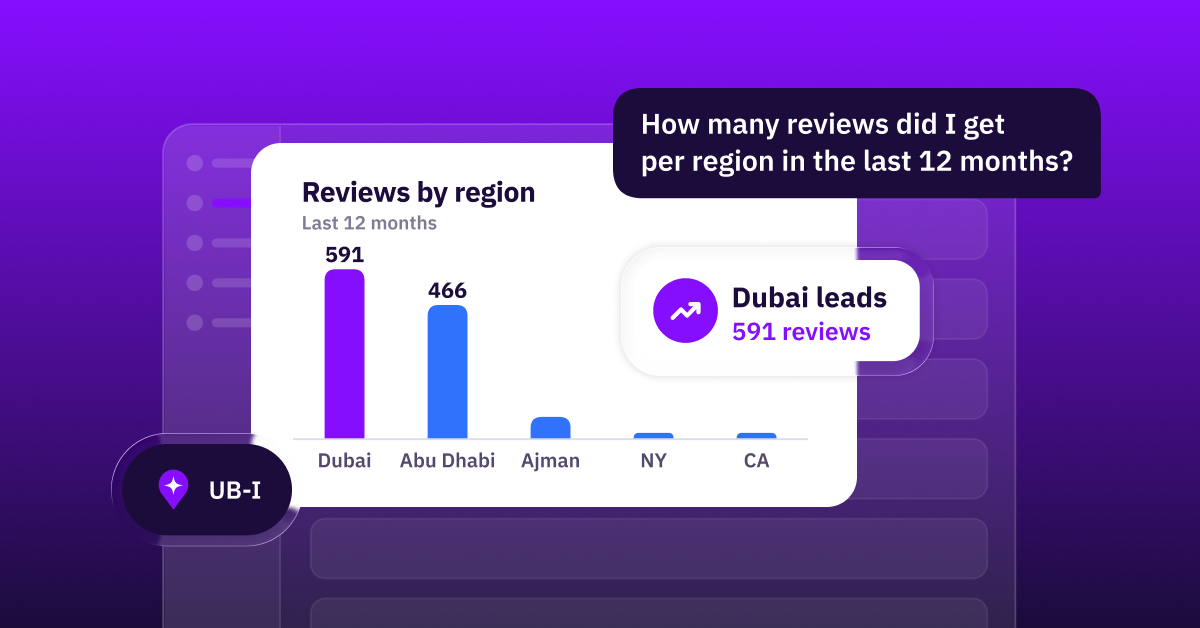
Our AI agent UB-I then monitors your local pages alongside your listings, reviews, and social, and flags what to fix first. It can also break your performance down per location — clicks to call, direction requests, bookings — so you’re not reporting that you rebuilt the locator, you’re showing which stores it’s sending people to and how many of them convert.
Your Locator Will Only Drive Customer Visits If Crawlers Can Read It
The test takes two minutes: right-click your store locator, choose “View Page Source,” and search for the street name one of your locations is found on.
If it’s not there, neither Google nor ChatGPT can see that store — and every filter, booking button, FAQ, and review you’ve added to the page is not actually reaching the people searching for what you offer.
The brands that treat their locator as a critical piece of their local visibility puzzle — not just a customer convenience — are the ones whose stores are recommended or ranked when customers are ready to make their decisions.



1,800 brands trust us to stay visible
— not just show up once or twice in local search.